How to Use SOCRadar Threat Intelligence MCP Server?
How to Use SOCRadar Threat Intelligence MCP Server?
SOCRadar’s MCP Server brings the power of real-time threat intelligence directly into your AI assistant. Once connected, it enables analysts, CISOs, and SOC teams to investigate threats, generate reports, and automate lookups using natural language—without ever leaving the chat interface.Integrating SOCRadar MCP Server
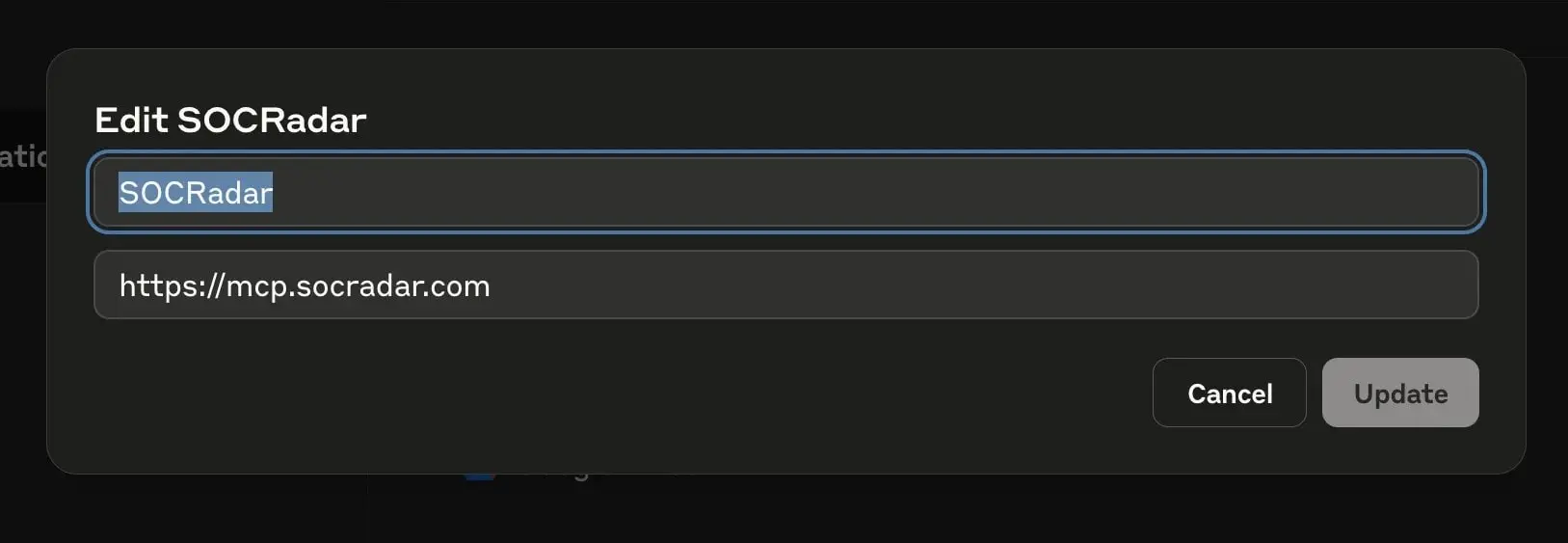
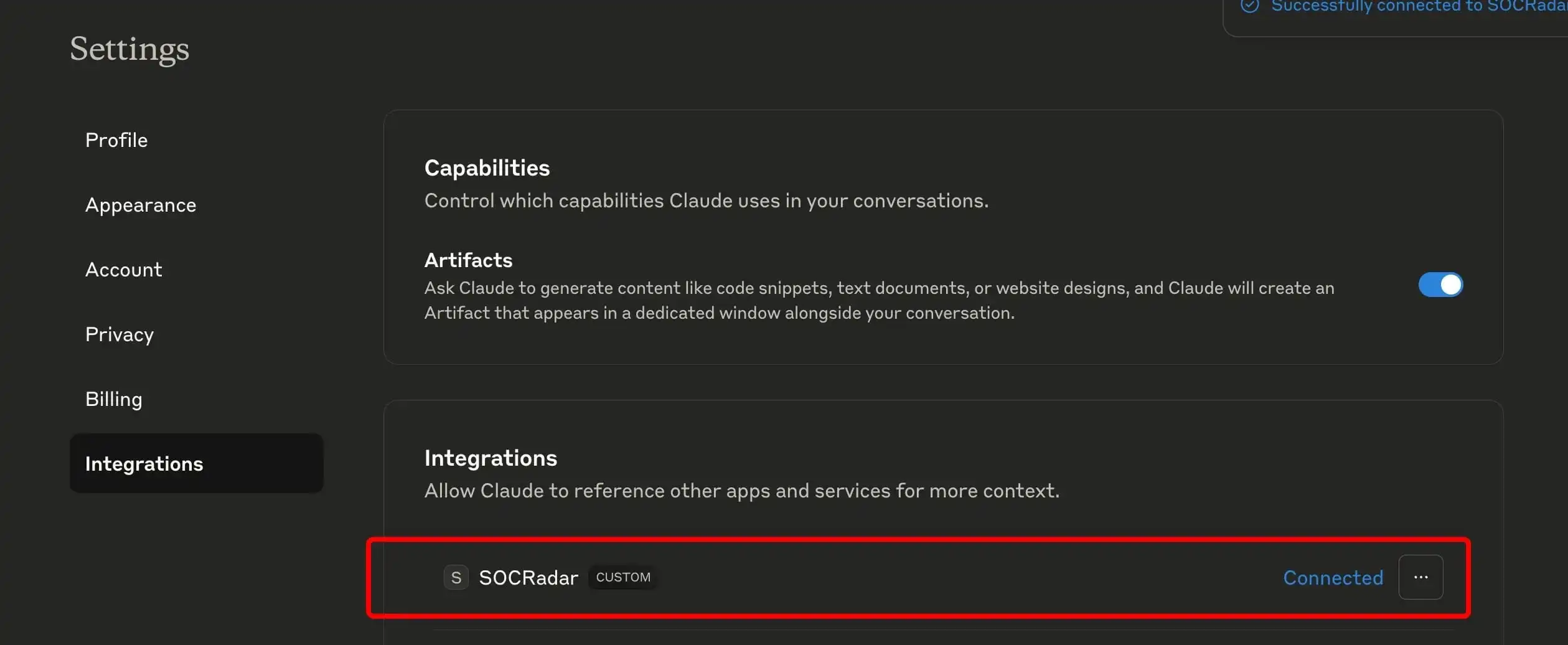
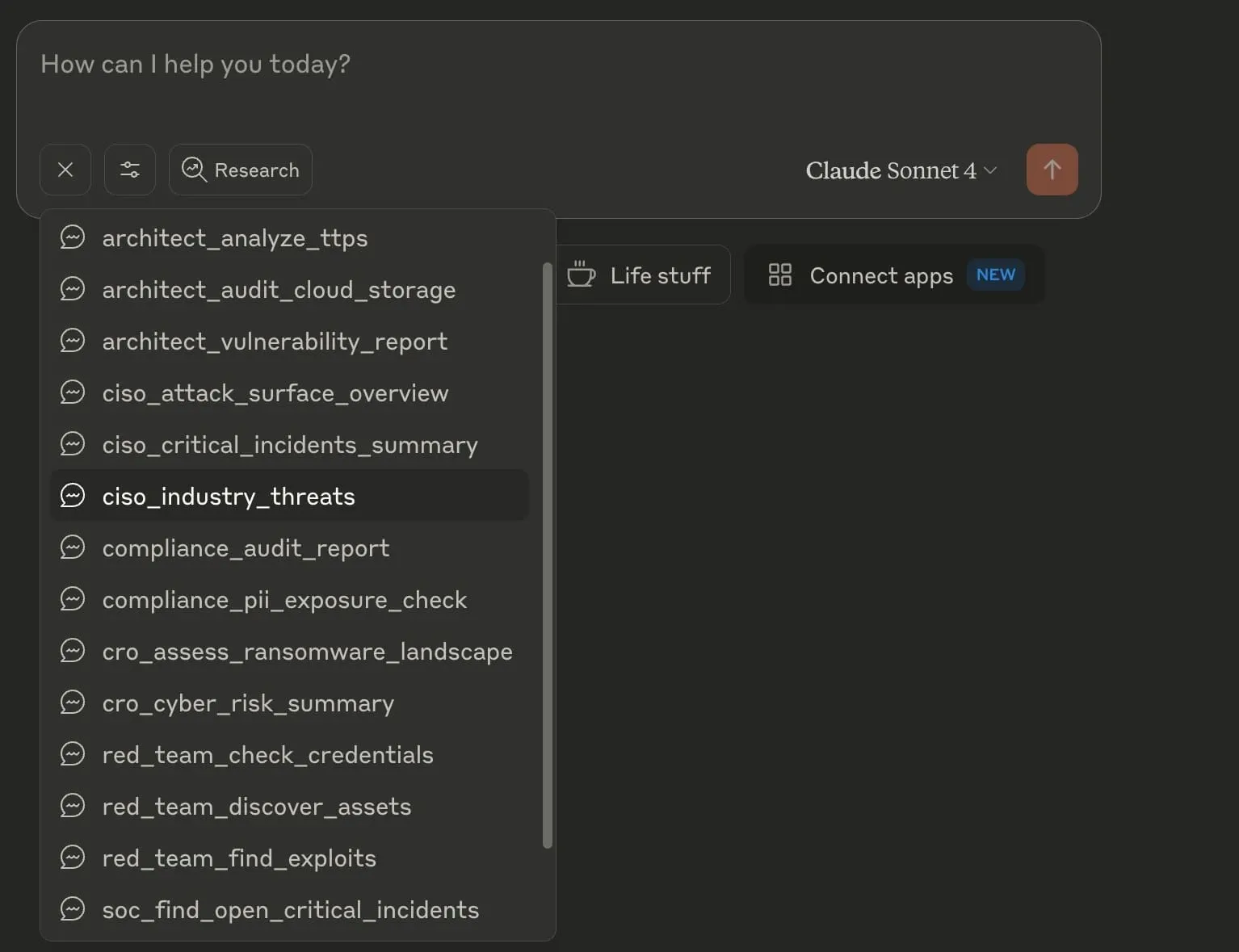
Before you can start using SOCRadar’s capabilities, you need to connect the MCP Server to your assistant platform. This one-time integration allows secure, real-time access to SOCRadar’s modules, including threat intelligence, vulnerability insights, and more. The process takes just a few steps. Step 1: Add SOCRadar as a Custom Integration Navigate to your assistant’s Settings > Integrations page. Click “+ Add integration” to register a new custom integration.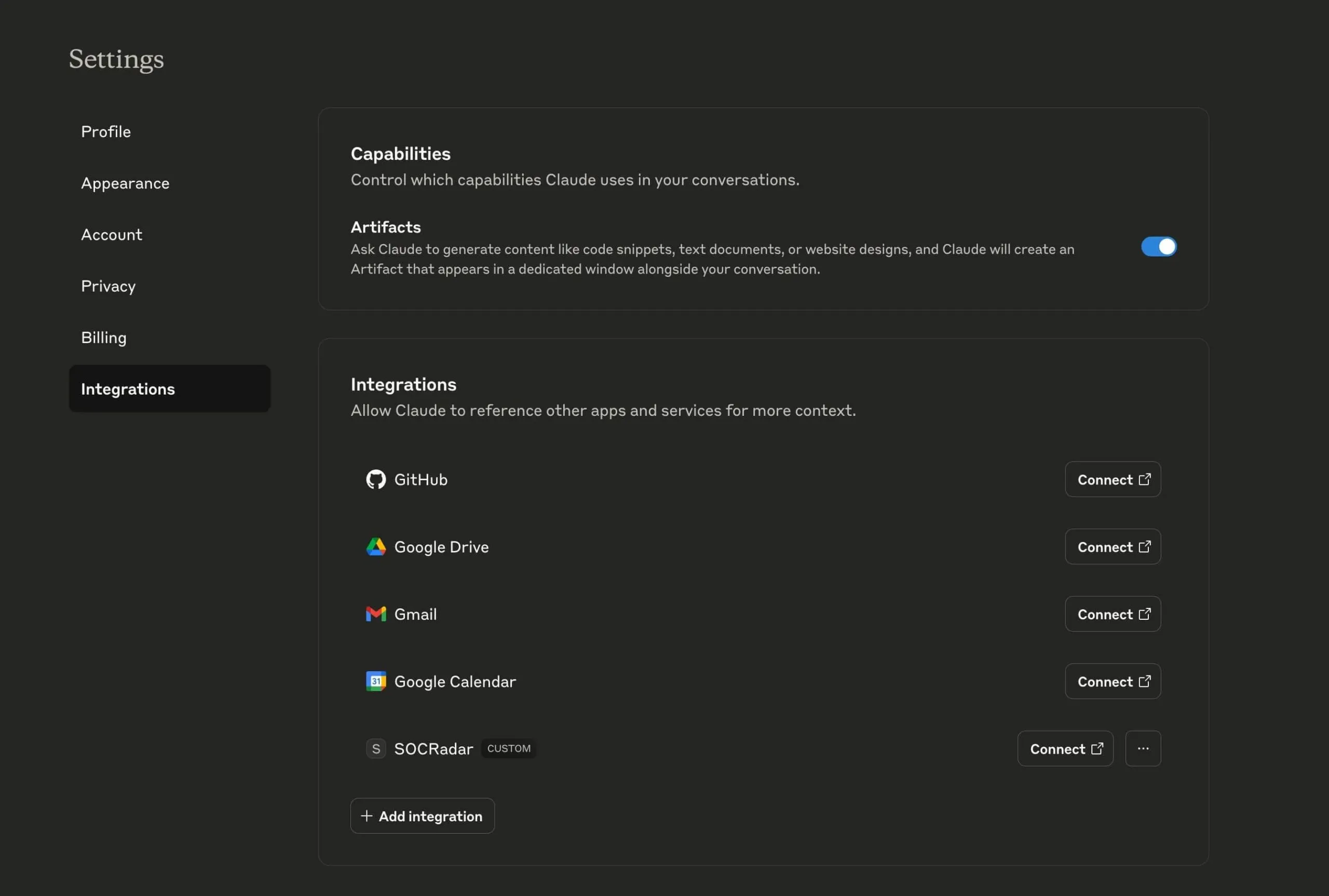
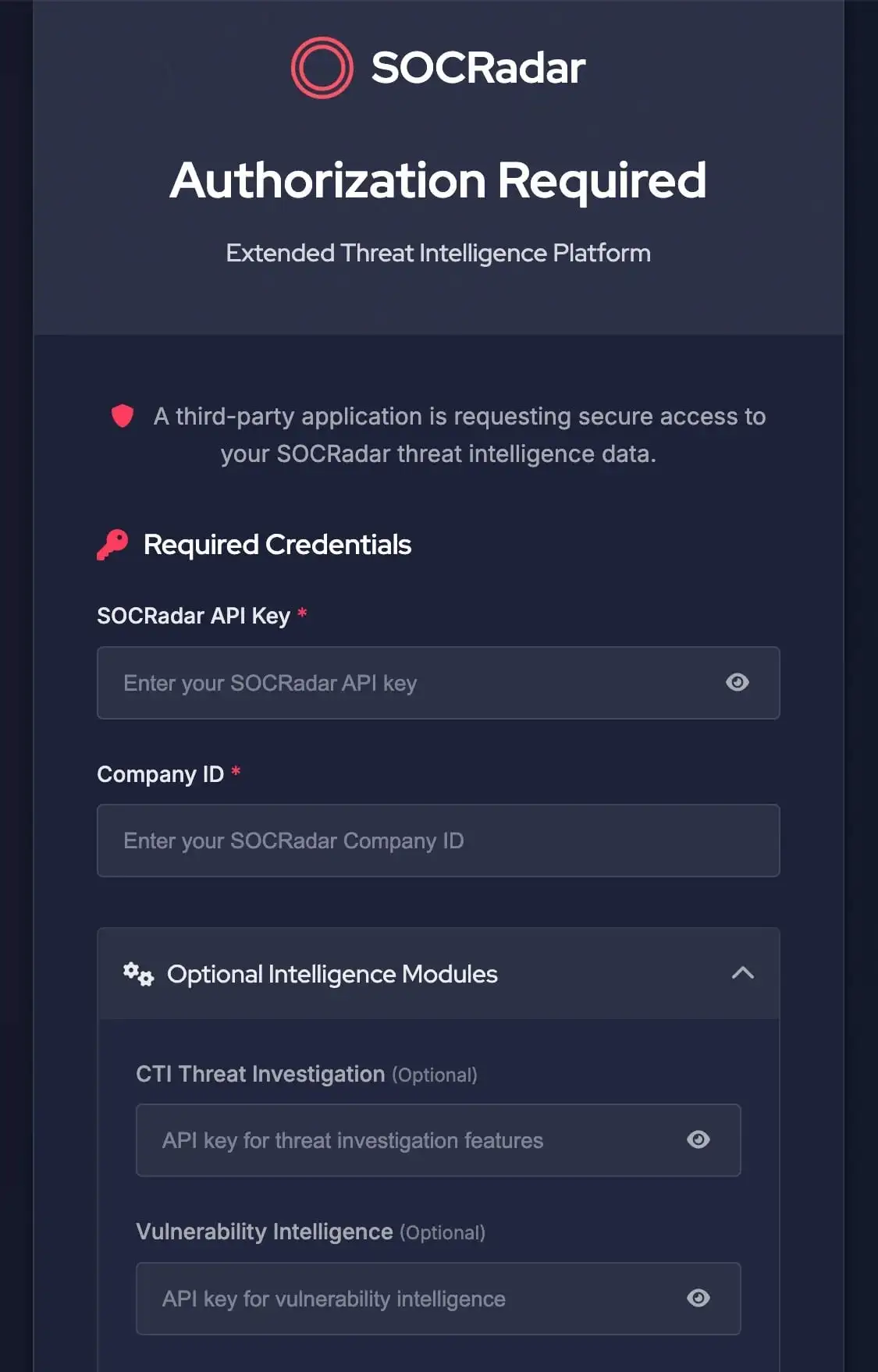
- CTI Threat Investigation
- Vulnerability Intelligence
- Identity Intelligence
- Ransomware Intelligence
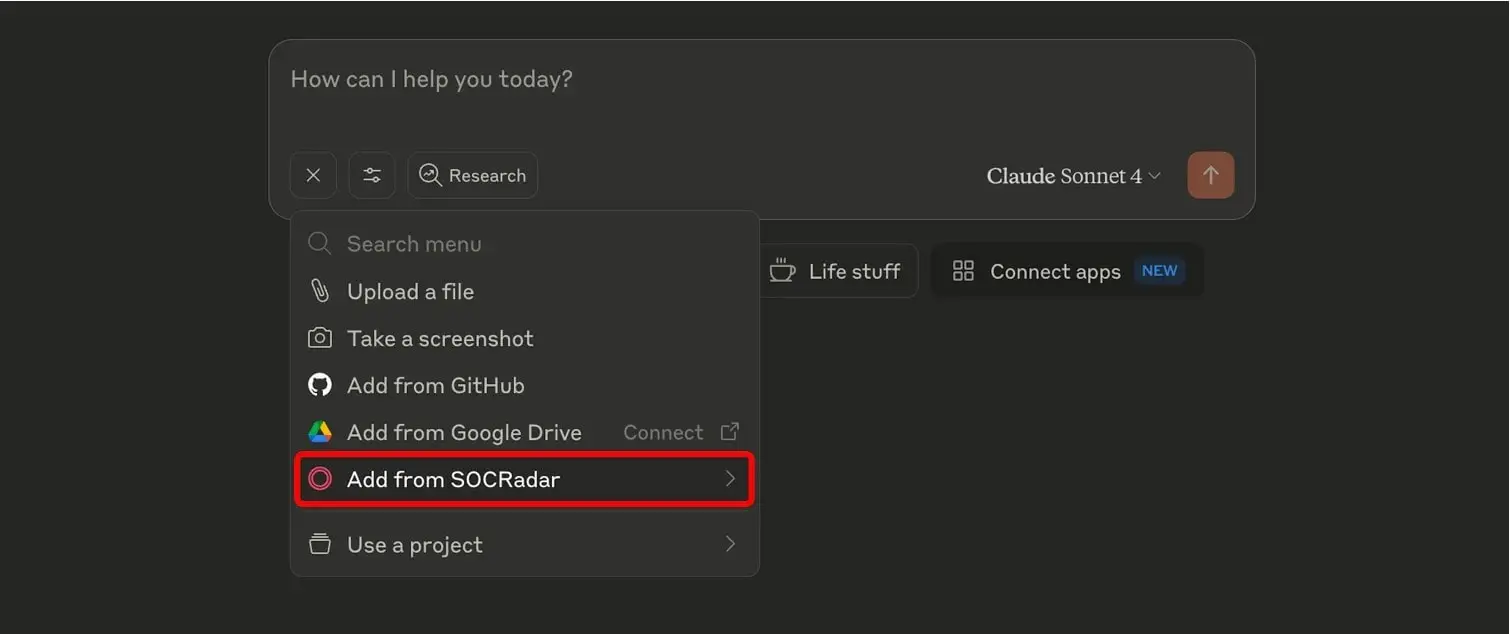
- ciso_industry_threats
- architect_vulnerability_report
- red_team_find_exploits
How to Use the SOCRadar MCP Server
The SOCRadar MCP Server is designed to empower AI assistants with direct access to enterprise-grade cybersecurity intelligence. Once integrated, the assistant can perform complex investigations, generate reports, and interact with live threat data using simple natural language prompts.Automating Threat Investigations with Natural Language
Security analysts, CISOs, and SOC teams can interact with the SOCRadar MCP Server by asking AI assistants to perform tasks such as:- Investigating emerging CVEs
- Generating real-time threat summaries
- Analyzing actor behaviors
- Tracking exposed credentials
- Generating executive briefings
Example Use Case: Investigating an Actively Exploited CVE
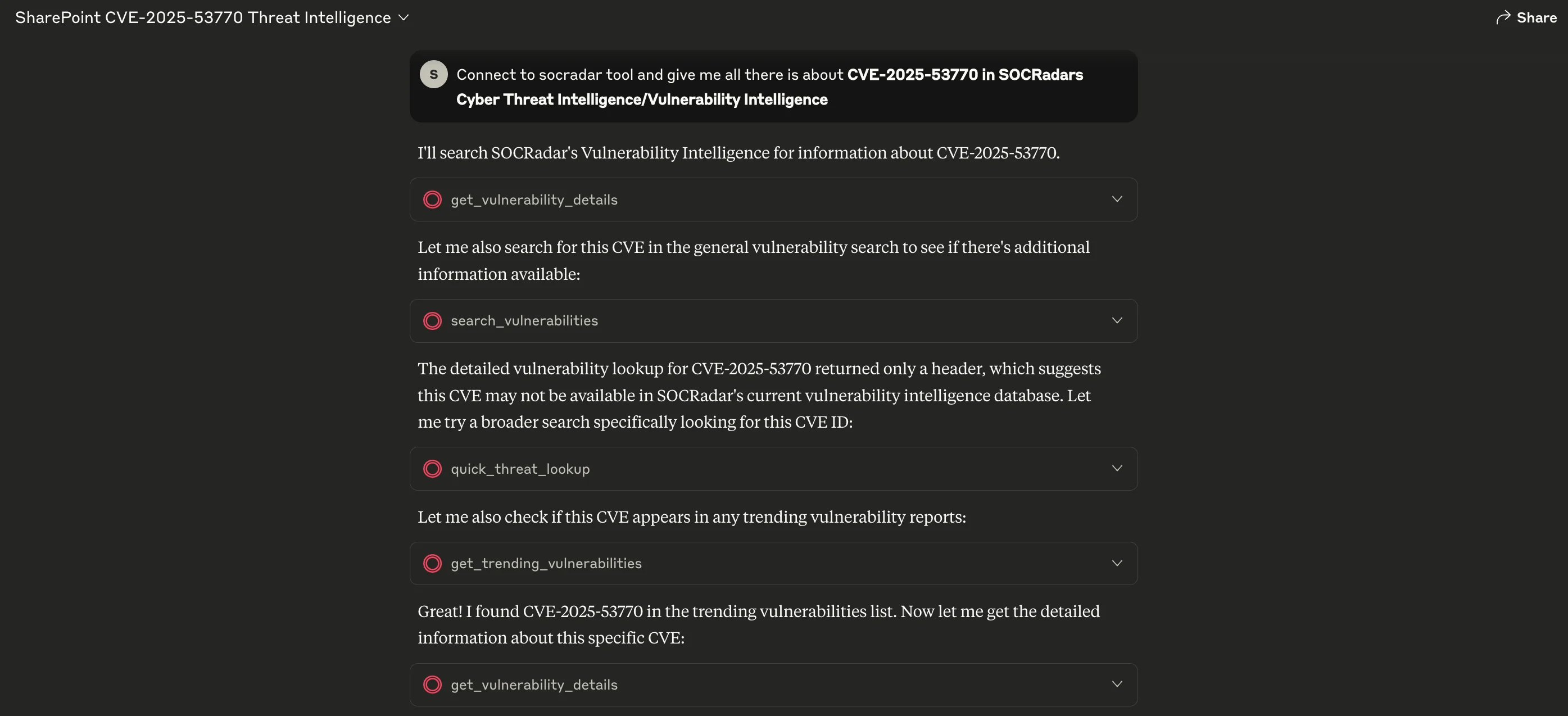
Scenario: A new remote code execution vulnerability in Microsoft SharePoint (CVE-2025-53770) is suspected to be part of an ongoing exploitation campaign. Your goal is to understand the severity, public attention, available exploits, and threat actor involvement. The Ask: “Give me all threat intelligence available on CVE-2025-53770 from SOCRadar’s MCP Server.” What Happens:- The AI agent searches the Vulnerability Intelligence and Cyber Threat Intelligence modules
- It performs multiple parallel lookups: vulnerability details, exploit availability, trending status, and broader threat context
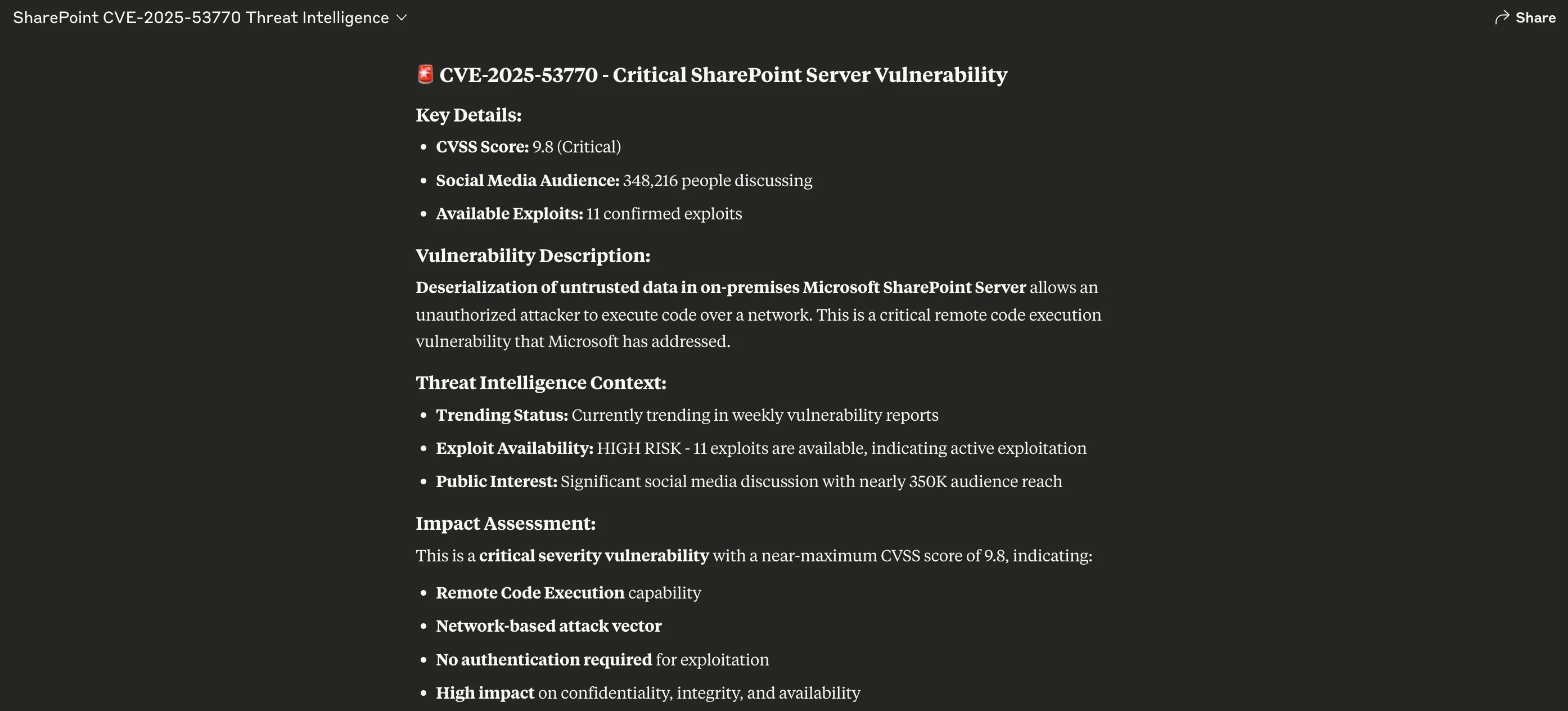
- It compiles and returns a summary including risk rating, CVSS, attack vectors, exploitation stats, and observed actor discussions
Why MCP Workflow Beats Manual Lookups
Using SOCRadar MCP, the same lookup takes seconds compared to manual browsing across multiple threat intel sources. Traditional Method:- Open multiple dashboards
- Search CVE databases
- Check dark web mentions manually
- Piece together threat context
- One prompt → consolidated results
- AI agent handles orchestration
- Enriched, up-to-date context across all modules
Uncategorized @us-en

Oct 16, 2026
CVE-2026-102764: BeyondTrust Zero-Day Exploited
BeyondTrust has disclosed CVE-2026-102764, a critical Remote Support vulnerability exploited as a zero-day weeks before customers received a patch. The attack began…
Cyber News
Oct 15, 2026
Cisco Secure Email & PAN-OS Zero-Days Exploited
Cisco Secure Email & PAN-OS Zero-Days Exploited Cisco and Palo Alto Networks have patched two actively exploited zero-day vulnerabilities that can lead…
CTI Fundamentals
Oct 15, 2026
SOCRadar Splunk Integration: New MSSP and Vulnerability Apps
SOCRadar Splunk Integration: New MSSP and Vulnerability Apps Your analysts live in Splunk. Your external risk does not: SOCRadar alarms for dozens…
Intelligence in your inbox every Thursday.
Join 30,000+ security professionals reading SOCRadar research.
Subscribe