Integrating SOCRadar MCP Server
Integrating SOCRadar MCP Server
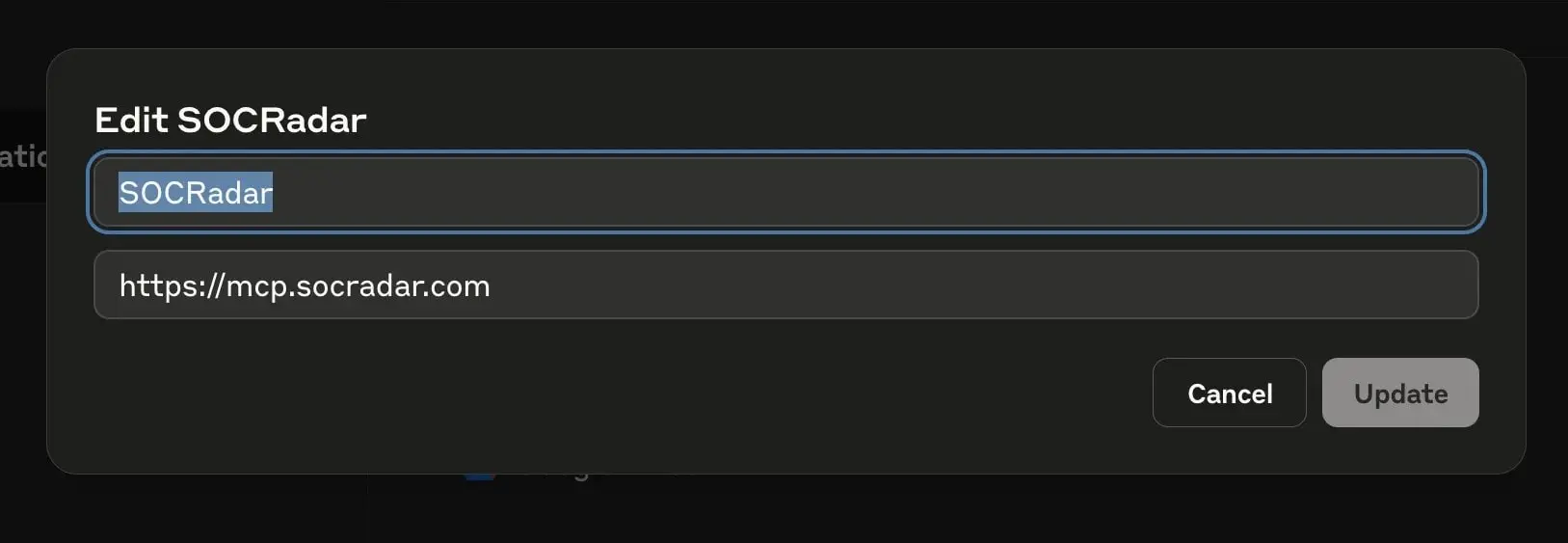
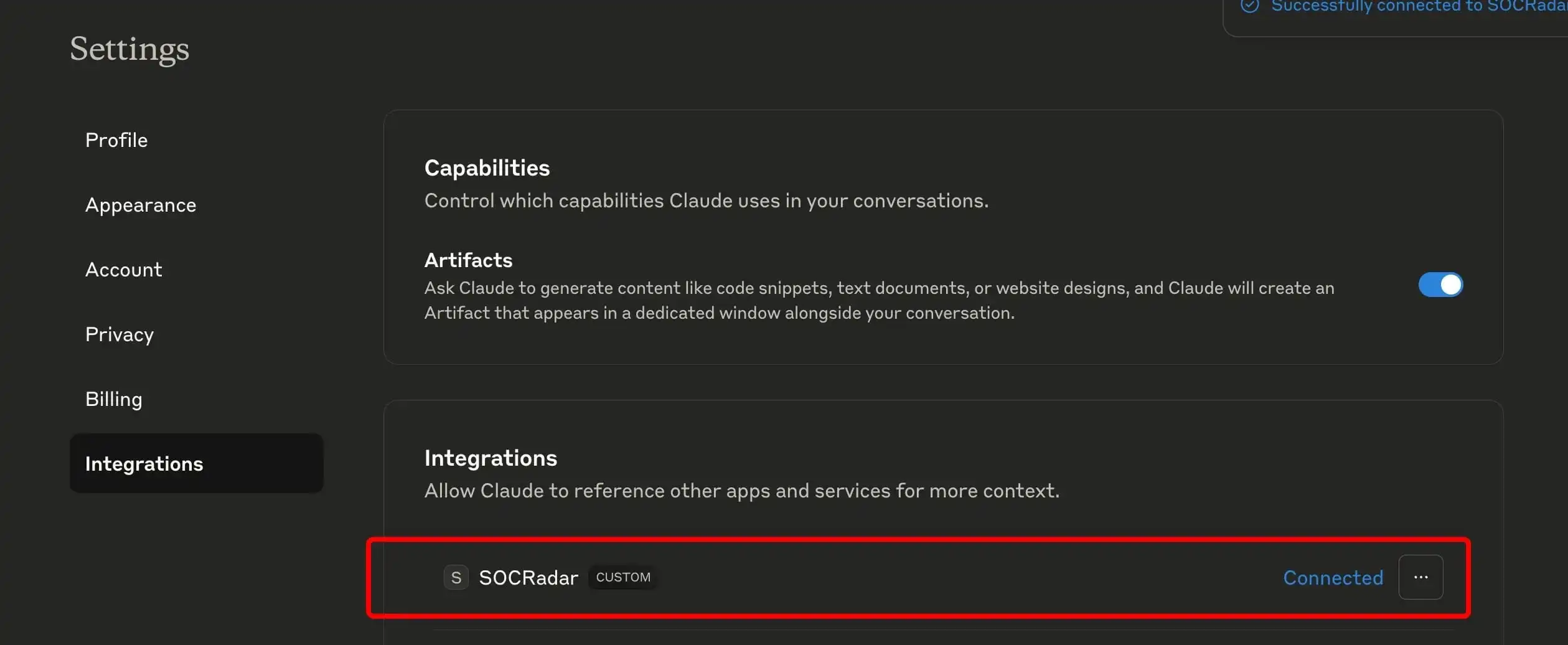
Before you can start using SOCRadar’s capabilities, you need to connect the MCP Server to your assistant platform. This one-time integration allows secure, real-time access to SOCRadar’s modules, including threat intelligence, vulnerability insights, and more. The process takes just a few steps. Step 1: Add SOCRadar as a Custom Integration Navigate to your assistant’s Settings > Integrations page. Click “+ Add integration” to register a new custom integration.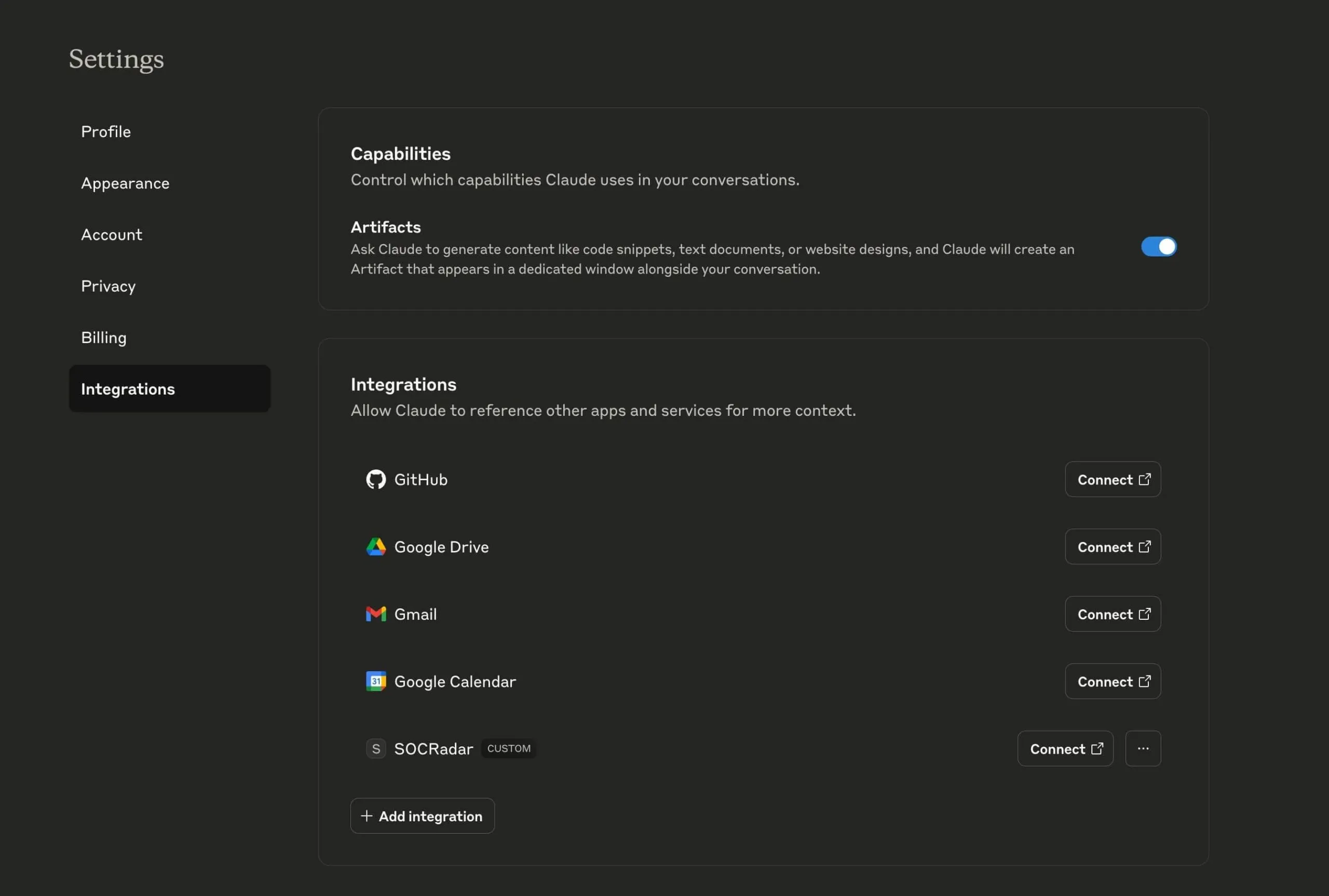
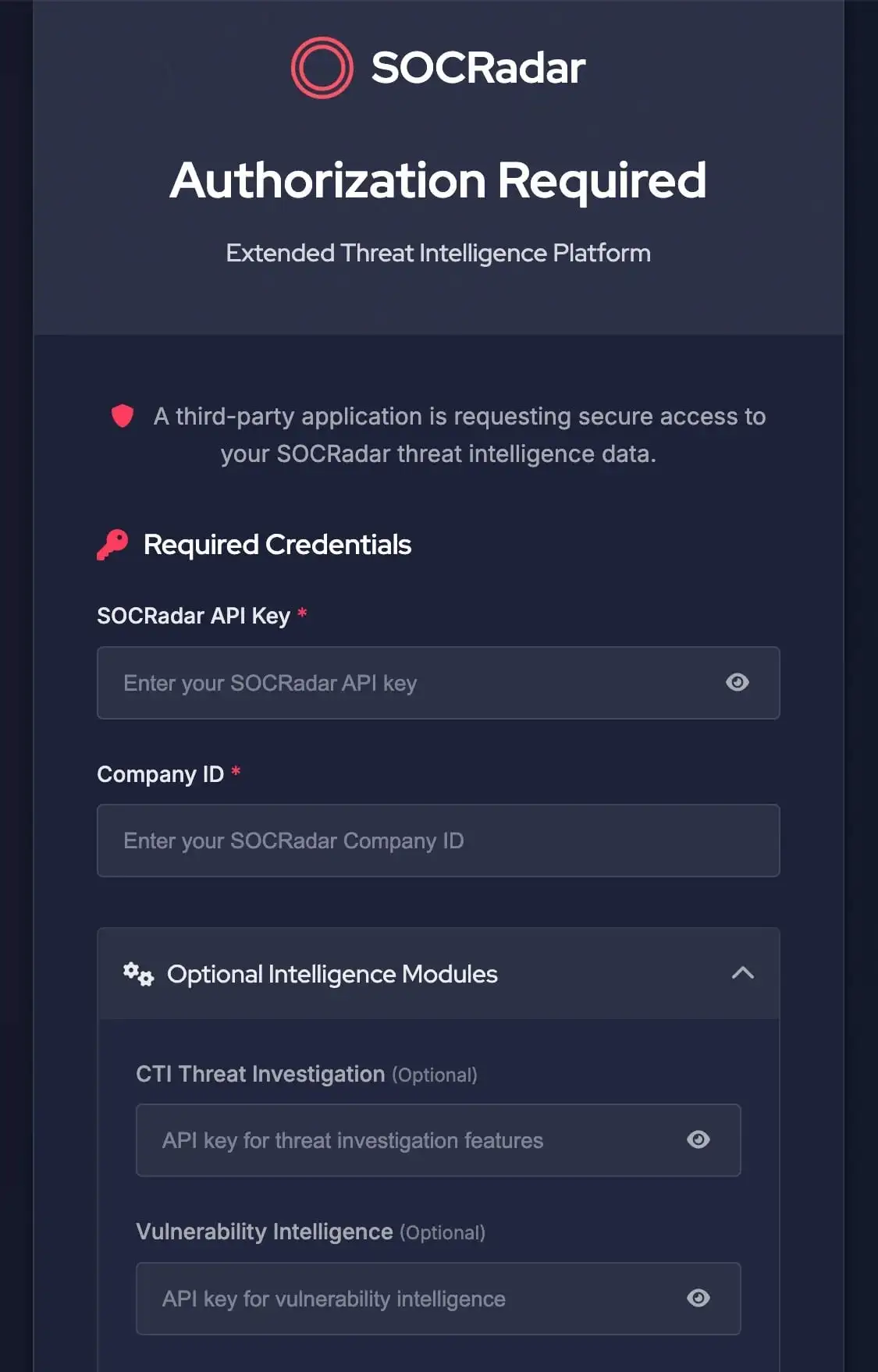
- CTI Threat Investigation
- Vulnerability Intelligence
- Identity Intelligence
- Ransomware Intelligence
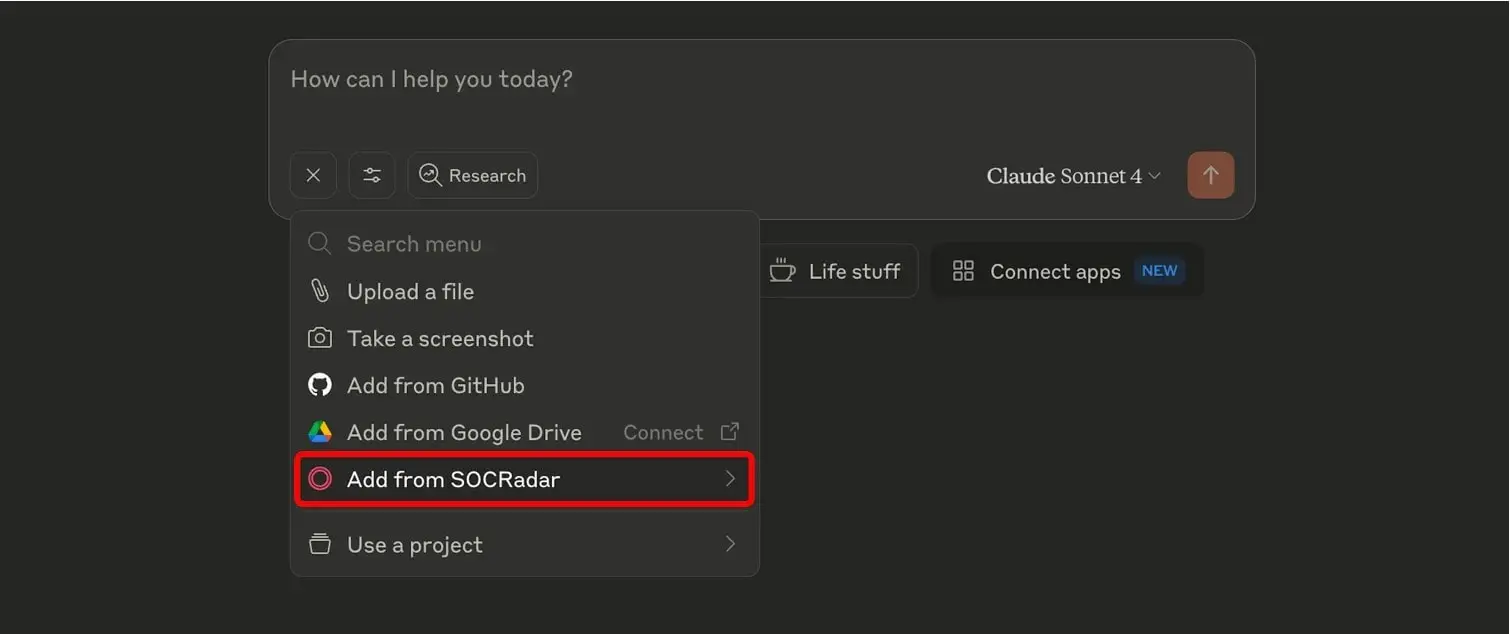
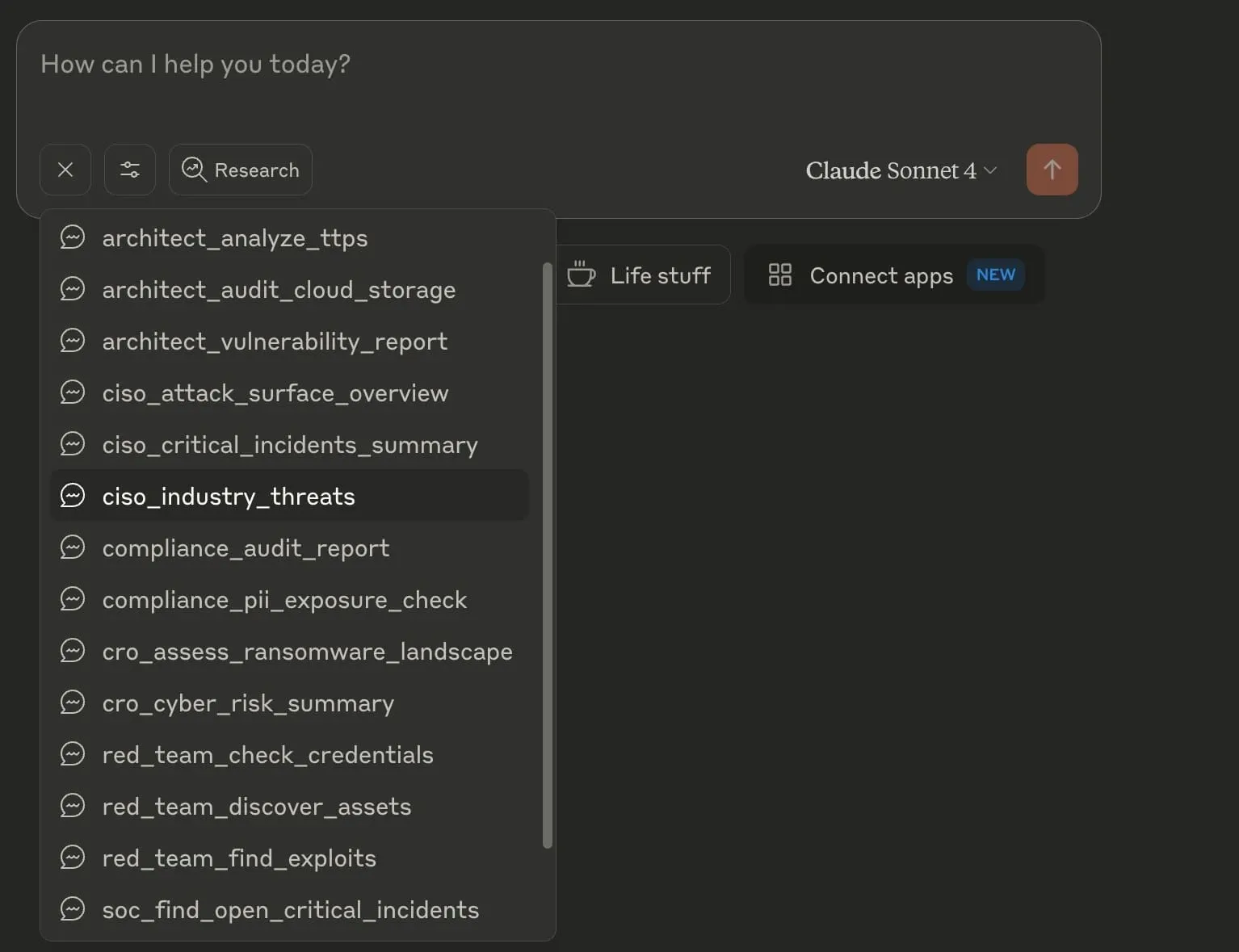
- ciso_industry_threats
- architect_vulnerability_report
- red_team_find_exploits
Uncategorized @us-en

Oct 16, 2026
CVE-2026-102764: BeyondTrust Zero-Day Exploited
BeyondTrust has disclosed CVE-2026-102764, a critical Remote Support vulnerability exploited as a zero-day weeks before customers received a patch. The attack began…
Cyber News
Oct 15, 2026
Cisco Secure Email & PAN-OS Zero-Days Exploited
Cisco Secure Email & PAN-OS Zero-Days Exploited Cisco and Palo Alto Networks have patched two actively exploited zero-day vulnerabilities that can lead…
CTI Fundamentals
Oct 15, 2026
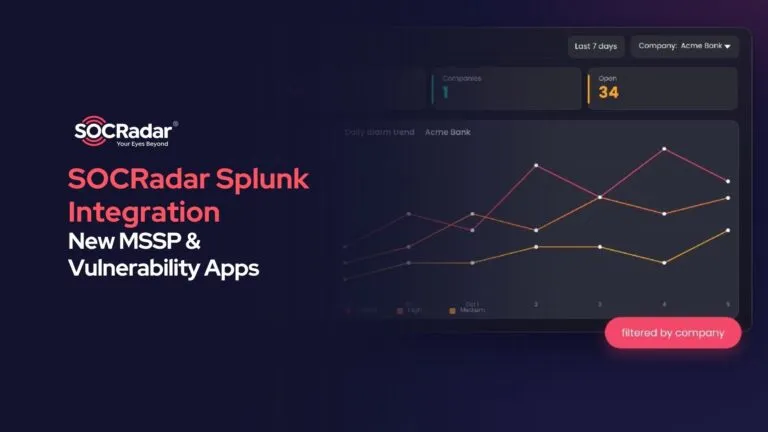
SOCRadar Splunk Integration: New MSSP and Vulnerability Apps
SOCRadar Splunk Integration: New MSSP and Vulnerability Apps Your analysts live in Splunk. Your external risk does not: SOCRadar alarms for dozens…
Intelligence in your inbox every Thursday.
Join 30,000+ security professionals reading SOCRadar research.
Subscribe